Pikix

VJ software for the Gamepark Holdings handheld video game console GP2X

What is a GP2X?

Released on November 10, 2005 in South Korea, the GP2X is designed to play video and music, view photos, and play games. It has an open architecture, allowing anybody to develop and run software.
(source gp2x wikipedia article)

The GP2X is not sold anymore but you may easyly find a second hand one on auctions websites.

Pikix is a video mix software running on this device.
It features all the classic VJ softwares options.

GP2X key features:

Pikix key features:

Download Pikix

for Windows XP and GP2X

Releases 8 and 9 support both F-200 and F-100 GP2X models, the other ones only support the F-100 (black) model.

Pikix setup

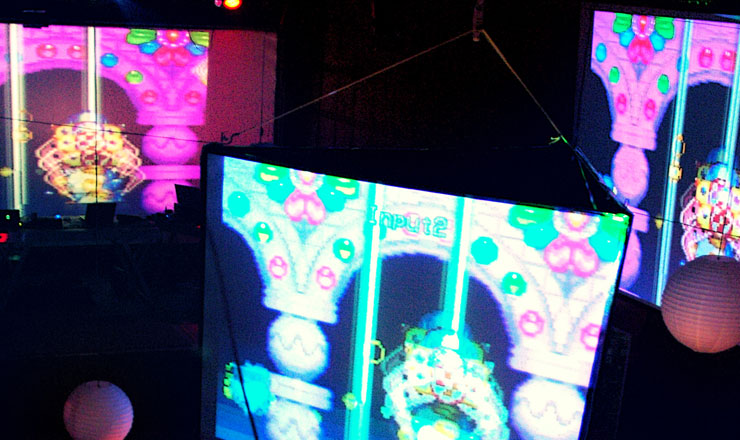
live pikix

Visual act festival, march 08, FR (photo: Joot)
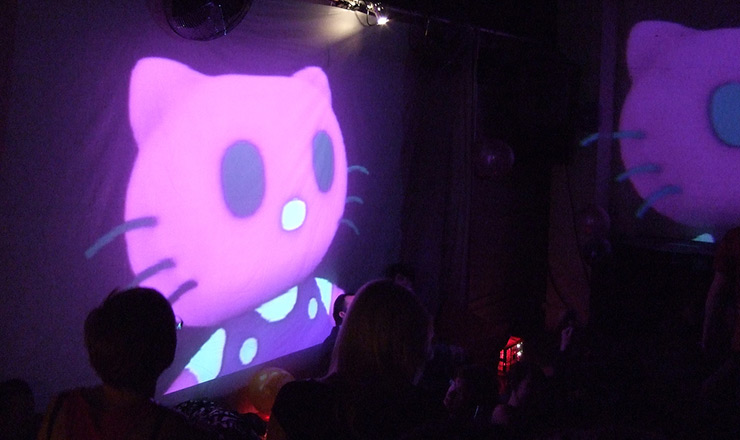
Soxan party, jan 08, London, UK

Screenshots
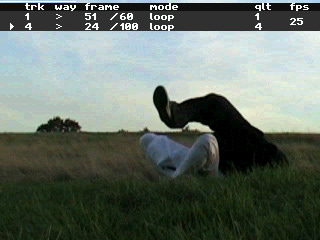
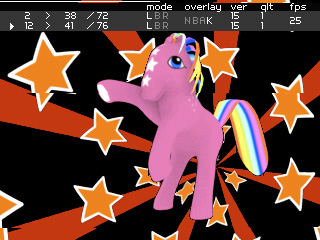
Pikix screenshotPikix screenshot Pikix screenshotPikix screenshot

Watch Pikix in action

Live from braindrop 09
pikix movie
music style:
clowncore
Noyoki
pikix movie
music style:
electro noise
Eastendarzsupajam
pikix movie
music style:
breakcore / experimental
Live from Braindrop 19
pikix movie
music style:
breakcore / experimental

Quick start

Just to test Pikix for a few minutes

Using windows XP

Uncompress the "pikix_v8_universal_princess.zip" archive on your hard drive and execute "Pikix.exe".

Using the GP2X

Uncompress the "pikix_v8_universal_princess.zip" archive on your hard drive and copy its content into your GP2X SD card. Via the "game" menu of your console, execute "Pikix".

Quick use

As the archive includes a few demo footages, it is ready for a quick mix.

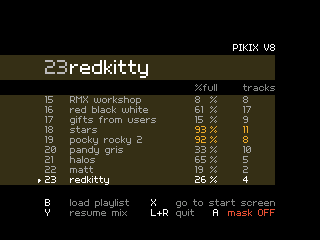
On the title screen, press start (or keyboard space bar) to reach the the playlist selection screen.

Press B to load the first playlist, and mix!

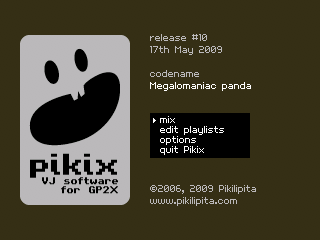
pikix title screen

Use your own footages

for a complete use of Pikix

Using windows XP

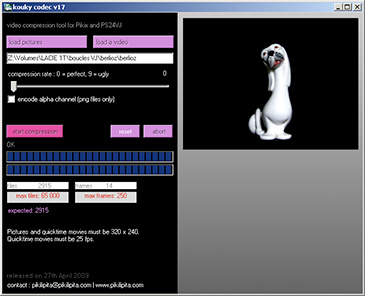
Now you've tried the demo footages of Pikix, you'd problably like to mix with your own footages. To use them, they need to be converted to a .k16 file using the Kouky v16 tool included in the archive.

Prepare your footage

Choose a video loop no longer than 250 frames. Convert it to a .bmp, static .gif, or .png files sequence, or to a quicktime movie. Dimensions must be 320x240 pixels. Virtualdub, a free software, can do this conversion.

Compress your footage to the k2x format

Launch Kouky v16

If you're welcomed by an error message, download and install the windows component ".NET framework 2.0" from microsoft.com, it should solve the issue.

Load your quicktime movie or your bitmap sequence.

Choose a compression quality rate (1 or 2 should be fine in most cases).

Press the "start compression" button.

If the amount of "tiles" reach 65 000, kouky will crash. In this case, increase the compression rate and try again. Once the compression is finished, a .k16 file will be created in the same folder as your footage sources.

Edit your playlists (using the built in tool)

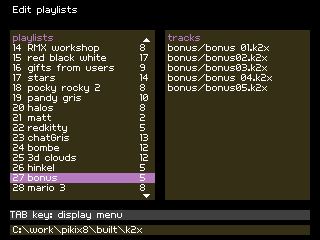
From Pikix Start screen, choose "edit playlist" and press B.

If you're unsing windows XP, press TAB to open the menu. If you're using your GP2X, press the Y button.

Edit your playlists (manually)

If you are confortable with XML files, you can also manually edit the playlists.

Into the archive's "k2x" folder, you will find a "playlists.txt" text file, it is actually a XML file.

You can include up to 25 files paths, but if the playlist percent is more than 100%, not all files will be loaded.

You can have up to 50 playlists in your playlists file.

Tips

Use the help bar (select button or enter), it's very usefull as it shows you the available shortcuts.

Before going to your gig, always test Pikix on your gp2X, some videos may work fine under windows, but may crash on the GP2X.

Don't use Batteries during a gig, use an AC adaptator. I mixed one time using brand new batteries, and they died after just 40 minutes of mix!

Pikix is drunkproof, I can tell ;)

kouky2x
pikix playlist selection screenpikix playlist edition tool screen

Key mapping

all the functions

On the white GP2X (F200), the joystick click is replaced by touching the upper left corner of the screen

On the white GP2X (F200), scratch the video by touching the lower half of the screen!

GP2X button

Windows keyboard

action

select

return

display / hide the help bar

right and left

right and left

next and previous video track

up

up

change active layer

down

down

swap layers order

joystick click

C

go to first frame

X

X

play forward / backward

start + select

space + return

go to the playlist screen selector

R + select

0

reset special effects and overlay, set both layers to track 0

special effects

L + Y + joystick click

1 + TAB

enable/disable mirror effect

L + B + joystick click

2 + TAB

enable/disable scrolling effect

L + X + joystick click

3 + TAB

enable/disable negative colors effect

L + A + joystick click

4 + TAB

enable/disable contrast effect

R + Y + joystick click

5 + TAB

enable/disable zoom effect

R + B + joystick click

6 + TAB

enable/disable hue effect

R + X + joystick click

7 + TAB

enable/disable Game Boy palette effect

R + A + joystick click

8 + TAB

enable/disable glitch effect

L + Y + joystick direction

1 + keyboard arrow

adjust mirror effect direction

L + B + joystick direction

2 + keyboard arrow

adjust scrolling effect direction

L + A + joystick direction

4 + keyboard arrow

adjust contrast effect color

R + B + joystick direction

6 + keyboard arrow

adjust hue effect color

play mode options

Y + right or left joystick direction

V + right or left keyboard arrow

switch between "loop", "bounce" & "random frame" modes

B + right or left joystick direction

B + right or left keyboard arrow

switch between "one track" & "all tracks" modes

A + right or left joystick direction

N + right or left keyboard arrow

switch between "reset to first frame" & "continue" modes

hold VOL +

hold F10

high speed

hold VOL -

hold F9

low speed

overlay mode

L + R + B

F2

blend mix overlay mode

L + R + Y

F3

addition overlay mode

L + R + A

F4

black chroma key overlay mode

L + R + up

F5

multiply overlay mode

L + R + right

F6

white chroma key overlay mode

L + R + X

F1

disable overlay mode

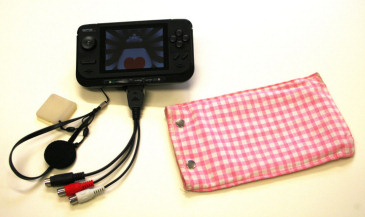
Complete VJ setup

All you need to say Bye bye to your laptop!

a GP2X

Obviously!

a SD card

You need one to install Pikix on and to store your footages. A 1 Gig card should provide enough storage.

an AC adaptator

Using batteries is too risky, you'd better use an AC adaptator.

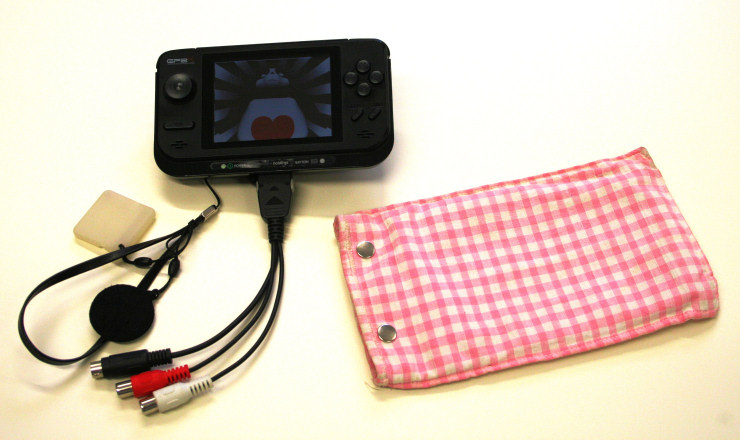
a TV adaptator

Without this cable, you won't be able to plug your console into a videoprojector (S-video output)

gp2x vj setup
back button